How to bake the Bevel shader into a normal map with Fyr Baker
Rounded hard-surface edges without modelling a single bevel: bake Blender's Bevel shader into a normal map with Fyr Baker, with or without a high-poly.
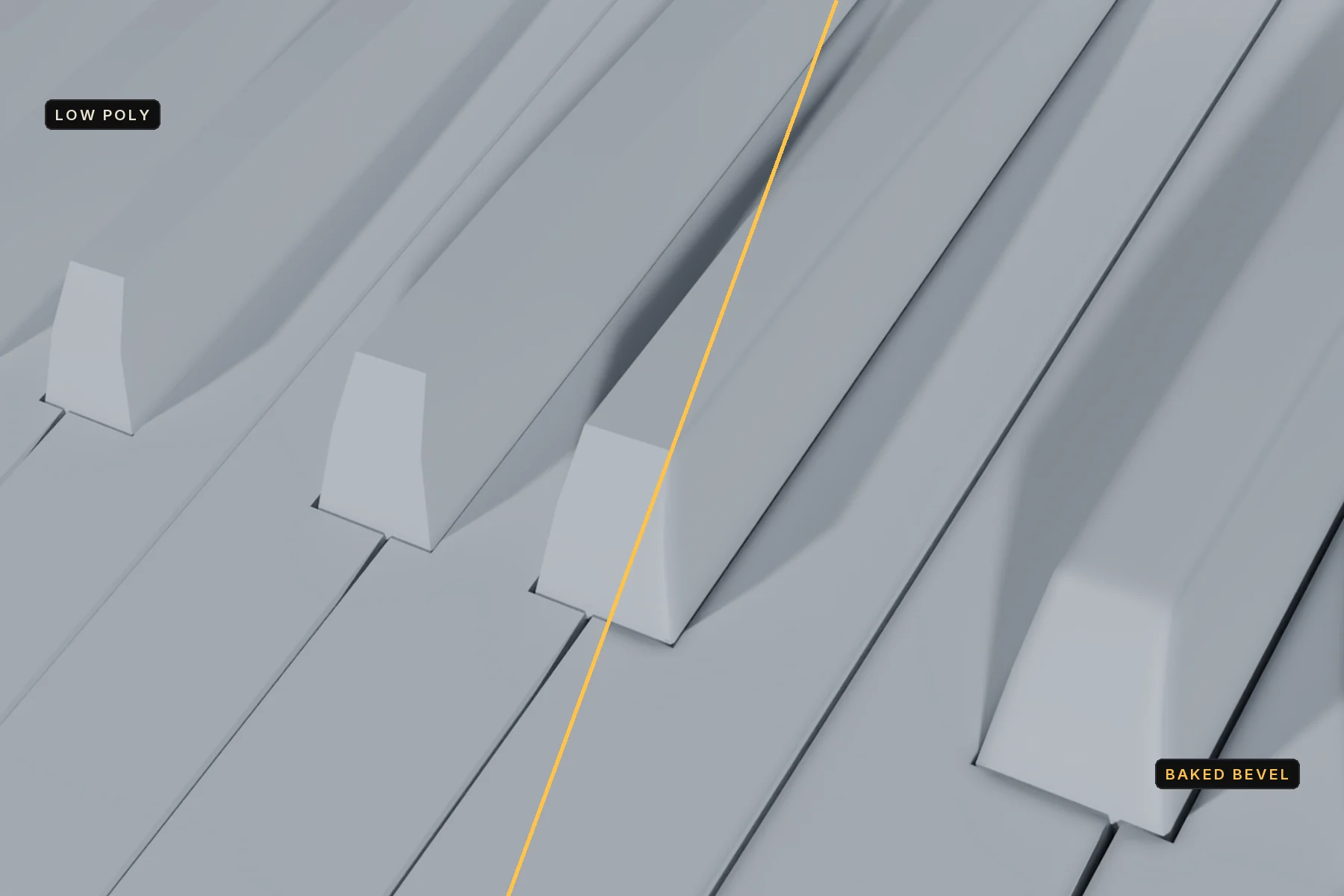
Sharp 90 degree edges catch no light, so hard-surface models look fake up close. Blender's Bevel shader node fakes rounded edges at render time, but only Cycles understands it. Fyr Baker evaluates the Bevel node natively on the GPU, following the same estimator as Cycles, so you can bake those rounded edges into a normal map that works in any engine.
This tutorial covers both setups: baking from a high-poly onto a low-poly, and baking a single mesh that has no separate high-poly.
Before you start
- Add the Bevel node. In the material that should get rounded edges, add a Bevel node (Shift+A, Input, Bevel), set its Radius in scene units, and connect it to the Normal input of the Principled BSDF.
- Apply the scale. Select the object and press Ctrl+A, then Scale, so the bevel radius means the same thing on every object.
- UV unwrap the mesh that receives the bake (the low-poly), with no overlapping islands.
- Save the .blend file.
Option A: bake from a high-poly onto a low-poly
Use this when the Bevel node sits on the high-poly material and you want the rounded edges transferred onto a game-ready low-poly.
- In the 3D Viewport, press N and open the Fyr Baker tab.
- Select Create Bake Project and set the output Folder.
- Select the low-poly and the high-poly with the low-poly active, then select Add Selected Meshes. If your meshes are not named with _low and _high, select the low-poly and use Add as Low, then the high-poly and Add as High.
- Open Cage, select the coverage icon and check that the model shows the inside color everywhere. New groups use Automatic cages, which usually cover a clean hard-surface asset.
- Open Maps and keep the Normal row on Tangent space. Leave its Material Detail on Auto, which combines the high-poly's Bevel detail with the geometric high-to-low normals. Material Only bakes just the bevel detail.
- Open Output, set the resolution and Normal Format (OpenGL for Blender, Unity and Godot, DirectX for Unreal).
- Select Bake Project. Run a low-resolution test first.
- Use Preview Map to show the Normal map on the low-poly and check the edges.
Option B: bake a mesh's own Bevel shader
Use this when there is only one mesh and the Bevel node is on its own material. Fyr Baker bakes the material's normal, including the Bevel node, straight into a texture.
- Select the mesh.
- In the 3D Viewport, press N and open the Fyr Baker tab.
- Select Bake Selected Materials.
- In the dialog, enable the Normal channel (plus any others you want, such as Albedo and Roughness) and confirm. This creates a Material Project; it does not start the bake yet.
- Optional: open the Shader Editor sidebar and check Bakeability. A checkmark means the channel bakes natively on the GPU.
- Set the Folder, resolution and Normal Format in Output, then select Bake Project.
Fine-tune the bevel
- Bevel Connected Only (in Output, on by default) rounds only the connected piece the Bevel shader is on. Turn it off to also round toward separate loose pieces of the same object within the bevel radius, the way Cycles does. Keys resting on a base then merge into it.
- Use Bevel Normal on an Ambient Occlusion row shades convex edges from the bevel normal, so AO matches the rounded edges. Convex Edges keeps concave fillets dark; All Edges behaves like Cycles' AO node fed a Bevel normal. It needs a tangent Normal row with Material Detail on Auto.
- Bevel Mask on a Curvature row (on by default) draws every bevelled edge at full strength, convex white and concave black. That makes a clean edge-wear mask for texturing. Turn it off for true curvature, which reads faint on small bevels.
Export
Open Export Textures..., choose the output template for your engine and export. To keep editing in Blender, change the Bevel radius and select Rebake Changed Maps, the icon next to Bake Project: only the affected maps re-bake.
Troubleshooting
- Edges look noisy. Raise Anti-Aliasing in Output for the final bake, and check the Bevel node's radius is not tiny compared to the texel size.
- Dents look raised in the engine. The green channel convention is wrong. Switch Normal Format between OpenGL and DirectX.
- Flat areas with no detail. The cage did not reach the high-poly there. Check cage coverage.
- Radius differs between objects. Unapplied scale. Apply it and bake again.