TutorialOctober 16, 20267 min read
How to bake procedural materials to PBR textures with Fyr Baker
Flatten a Blender node material into base color, roughness, metallic and normal maps with Fyr Baker, then export them packed for your engine.
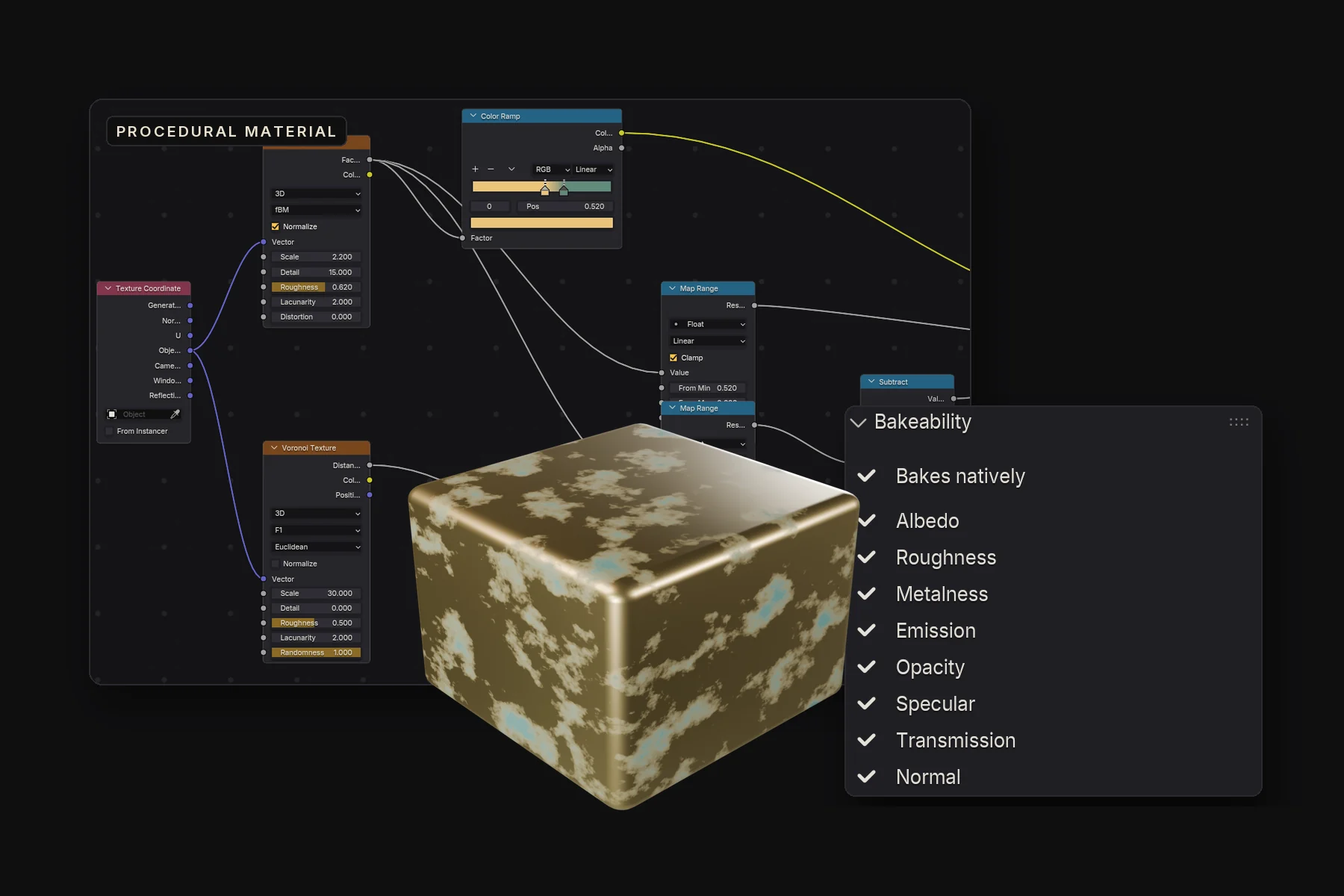
Noise, Voronoi and gradient nodes only exist while Blender renders. Export the model to a game engine or another app and the material stays behind, because those tools only read image textures. Fyr Baker reads your node graph, evaluates it on the GPU and writes each channel to its own texture, with no high-poly and no cage needed.
Before you start
- Apply the scale (Ctrl+A, Scale) if the material uses Object or Generated coordinates. The pattern scales with the object, and the bake should match what you see.
- UVs: unwrap the objects, or let Fyr Baker create a UV layer for objects that have none (step 3).
- Image textures in the material need the right Color Space: color images as sRGB, data such as roughness as Non-Color.
- Save the .blend file.
Bake the material
- Select the objects whose materials you want to bake.
- In the 3D Viewport, press N and open the Fyr Baker tab.
- Select Bake Selected Materials. In the dialog, review the detected channels and enable the ones you need: Albedo, Roughness, Metalness and Normal for a standard PBR set, plus Emission, Opacity, Specular or Transmission if your material uses them. Leave Generate Smart UVs for missing objects on if some objects are not unwrapped; it adds a FyrMaterialBake UV layer only where no usable UVs exist. Confirm.
- The dialog creates a Material Project with one map row per channel. It does not start the bake yet.
- Open the Shader Editor sidebar and select Bakeability. A checkmark means the channel bakes natively on the GPU, via Cycles means it needs Cycles, and unbakeable means the graph has no supported route. Click a reported item to jump to the node responsible.
- Open Output: set the Folder, set X to your resolution (Y follows), choose a Dilation margin such as 16 pixels, and set Normal Format for your engine.
- Select Bake Project. Bake once at low resolution to check, then at full resolution.
- Use Preview Map to show any channel on the model, or Preview Baked Material to see everything baked so far as one material.
Export a packed texture set
- Select Export Textures....
- Pick an Output Template for your target, for example a PBR Metallic Roughness set, Unreal Engine (Packed), Unity URP or ORM Packed (glTF). The template decides file names and which maps go into which channels.
- Check the Export List for missing-source warnings, then export.
Fyr Baker writes Albedo and Emission as sRGB and every other map as Non-Color data. In your engine, import roughness, metallic, packed and normal textures as linear or non-color.
More control: capture and custom outputs
- Fyr Material Capture (Shader Editor, Add, Output, Fyr Baker) sits before the Material Output and lets you override what each channel bakes without changing how Blender renders the material.
- Fyr Custom Output adds your own named Color, Value or Vector map to the stack, for example a dirt mask or an emissive mask. Outputs with the same name across materials share one row.
- Rescan Materials in the map stack picks up channels you added to the material later, without resetting your rows.
Troubleshooting
- A channel shows (approx.) in the dialog. Fyr Baker found it, but the graph conversion is not exact. Compare the result with the viewport before final use.
- A channel is via Cycles or unbakeable. Click it in Bakeability to find the node responsible. Replace that node with a supported one, or keep the Cycles route.
- The pattern is the wrong size. Unapplied scale on an object whose material uses Object coordinates. Apply the scale and bake again.
- Missing image detail. A material whose image files are missing on disk cannot reproduce them. Relink the images first.
- Animated values look frozen. Baking uses the current frame. Set the frame you want before you bake.